Copy-and-paste prompts for planning, assessment, differentiation, data analysis, vocabulary, rubrics, and PLC workflows. Each one is a starting point inside a teacher-reviewed process and is intentionally compact for efficient use in free AI chat tools.
Strong instructional work begins with a clear goal and approved source material, then moves through AI-supported drafting, teacher review, classroom use, and evidence. Do not paste student names, IDs, confidential plans, or source material you do not have permission to use.
Make the prompt fit your classroom
Change the inputs, constraints, or output without rewriting everything.
Replace every bracketed direction with your information. Delete optional lines you do not need, then add one or two constraints that will meaningfully change the result. Keep essential context such as the learning target, grade, time, and approved source material.
1. Fill in the minimum inputs
Use short phrases, a focused excerpt, or a class summary instead of pasting an entire document.
Stay in the same chat and request only the change you need: “Keep the target, but replace the group activity.”
Designed for concise results
Each template limits the requested output and tells the chatbot not to repeat your inputs. This reduces unnecessary text while preserving the information needed for a useful draft, which is especially helpful when working within the usage limits of a free AI chat tool.
Short follow-ups that save time
“Shorten this to one page.”
“Return only the student directions.”
“Keep the content; simplify the reading level.”
“Revise question 3 and leave the rest unchanged.”
Using file uploads safely
Attach useful context without attaching student identities.
When a school-approved AI tool accepts files, you can attach unit plans, assignments, readings, rubrics, or cleaned assessment results instead of pasting everything into the prompt. Upload only the pages, columns, or tabs needed for the task.
Before attaching instructional materials
Confirm that the material is approved for use and that you have permission to share it with the tool.
Use a focused excerpt when the chatbot does not need the entire unit, textbook chapter, or slide deck.
Remove student comments, tracked changes, teacher notes, and other unrelated information.
Name the attachment in the prompt so the chatbot knows which file to use.
Using coded student results
1. Replace identifiers. Remove names, initials, email addresses, and school student IDs. Assign a non-identifying code such as S4827 to each row. Do not use birth dates, initials, existing IDs, or a sequence that reveals roster order.
2. Keep the key separate. Store the code-to-student lookup in an approved local or district system. Never upload that key to the chatbot.
3. Upload only the cleaned file. Check filenames, hidden spreadsheet tabs, comments, formulas, and document properties for identifying information.
4. Reconnect locally. After reviewing the AI response, use your separately stored key to connect a code back to a student when instruction requires it.
Prefer a class summary when possible. Coded rows are useful when you need to compare skills across the same students. If the task only needs class-wide patterns, totals by question or learning target reveal less information and usually use fewer chatbot tokens. Follow district policy even when names have been removed.
Quick start
Lesson planning
Turn a standard, topic, and time window into a reviewable lesson draft.
Create a concise lesson plan from these inputs.

Learning target: [paste]
Grade: [insert]
Time: [insert]
Topic or approved source: [describe, paste, or attach; enter N/A if none]

Return only:
1. Student-friendly target
2. Opening check for prior knowledge
3. Core activity and guided practice
4. Exit ticket
5. Materials and teacher preparation

Use my source first. Keep every activity aligned to the target and appropriate for the grade. Label assumptions. Do not repeat my inputs.
Guided
Pre-assessment
Draft a short pre-assessment that reveals prerequisite gaps before instruction begins.
Create a concise pre-assessment from these inputs.

Learning targets: [paste or attach]
Unit goal: [insert or attach unit outline]
Grade: [insert]
Known misconceptions: [insert or N/A]
Question count: [insert]

Return only:
1. Questions focused on prerequisite knowledge
2. Target or prerequisite measured by each question
3. Answer key
4. Brief guide: ready, review, or reteach

Use plausible misconceptions only when appropriate. Keep wording grade-level appropriate. Do not request student information or repeat my inputs. Label anything I should verify.
Guided
Assessment creation
Create a balanced assessment draft from approved source material and learning targets.
10-20 minutes
What you need first
Approved source material
Learning targets
Question count
Desired question mix
Files you can attach
When your approved AI tool supports file uploads:
Approved source material
Unit plan, learning targets, or assessment blueprint
Create a concise assessment draft from these inputs.

Approved source: [paste an excerpt or attach a file]
Learning targets: [paste or attach]
Question count and types: [insert]
Reading level: [insert or N/A]
Rigor range: [insert or N/A]

Return only:
1. Numbered questions
2. Target and rigor for each question
3. Answer key and brief scoring guidance
4. Items requiring factual or alignment review

Balance coverage across the targets. Avoid trick questions, unsupported details, and close copying. Do not repeat my inputs.
Advanced
Data analysis
Turn a class summary or results with student names removed into practical next steps.
Review these class results and suggest concise next steps.

Class results: [paste a class summary or attach a cleaned file that uses non-identifying student codes]
Learning targets: [paste or attach]
Assessment and scoring: [describe or attach a blank assessment and scoring guide]
Incomplete or unavailable results: [note absences, unscored items, or omitted sections; enter N/A if complete]

Return only:
1. Supported class-wide strengths
2. Up to three review, reteaching, or extension priorities
3. One practical response and quick check per priority
4. Data limitations and teacher questions

Connect every claim to the results. Do not guess causes or make placement, disability, intervention, or student-labeling decisions. Do not repeat my inputs.
Guided
Differentiation
Adapt approved material while preserving its core goal and instructional intent.
Adapt this material while keeping the same learning goal.

Approved material: [paste or attach]
Learning goal: [insert]
General supports needed: [insert or N/A]
Extension needed: [insert or N/A]

Return only:
1. Scaffolded version
2. Standard version
3. Optional extension
4. Brief list of changes and what remained constant

Use sentence frames, examples, chunking, or visuals only when useful. Flag changes that could alter rigor or validity. Do not include student names or confidential information. Do not repeat my inputs.
Quick start
Activities and worksheets
Draft a classroom activity with teacher directions, student directions, and an answer key.
Create a concise classroom activity.

Topic or approved material: [describe, paste, or attach]
Learning target: [insert or attach]
Time: [insert time]
Materials: [list or N/A]
Work mode: [individual, partners, groups, or mixed]

Return only:
1. Teacher preparation
2. Student directions
3. Target-aligned task and questions
4. Reflection or transfer question
5. Answer key or sample response
6. Low-material backup

Keep the activity within the stated time. Flag facts, assumptions, or sources I should verify. Do not repeat my inputs.
Guided
Rubrics and feedback
Draft transparent performance criteria and a reusable feedback structure.
Create a concise rubric and feedback guide.

Assignment: [describe, paste, or attach]
Learning targets: [paste or attach]
Points or scale: [insert]
Feedback priorities: [insert or N/A]

Return only:
1. A compact table with criteria and four clear performance levels
2. A short feedback sentence bank tied to the criteria
3. Three checks for the teacher before grading

Use observable, student-friendly language. Avoid vague labels. Do not score student work or repeat my inputs. I will review the rubric against local grading policy.
Advanced
Application and explanation quiz
Create a short, individualized follow-up quiz grounded in an anonymized student submission.
15-25 minutes
What you need first
Course and grade level
Assignment directions and learning targets
Rubric or scoring criteria
Anonymized student submission
Files you can attach
When your approved AI tool supports file uploads:
Assignment directions, learning targets, and rubric
Student submission with names and identifying details removed
Ways to adjust this prompt
Choose written, oral conference, locked-browser, or printed format
Set a 10-15 minute limit and question count
Name a specific concern or area needing clarification
Copy-and-paste prompt
Concise output by default
Create an individualized Application and Explanation Quiz from these inputs.

Course and grade: [insert]
Assignment directions: [paste or attach]
Learning targets or standards: [paste or attach]
Rubric or scoring criteria: [paste or attach]
Anonymized student submission: [paste or attach]
Teacher concerns: [insert or N/A]
Quiz format: [short answer, oral conference, locked browser, or printed]
Maximum time: [10-15 minutes]

This is not an AI-detection, plagiarism, or authorship review. Evaluate only the learning visible in the product and what the student should verify through explanation, modification, or application. Do not use accusatory language.

Return only:
1. Evidence table: target or criterion; submission evidence; evidence strength (Strong, Partial, Weak, or Not Present); what is unclear; verification needed
2. Five to seven submission-specific questions balanced across explanation, evidence, clarification, fix or modification, and transfer or application
3. Compact scoring guide for each question: target, proficient evidence, partial understanding, need for more instruction, and points
4. Combined recommendation: what the product supports, what needs explanation, what could be updated after the quiz, and what lacks enough evidence to score
5. A clean student version with only a title, brief directions, numbered questions, and response guidance

Allow different accurate explanations. Do not infer missing understanding, calculate a final grade unless asked, expose teacher concerns in the student version, or repeat my inputs.
Advanced
Grading priority planner
Use learning evidence and available time to decide what to grade fully, selectively, or formatively.
15-25 minutes
What you need first
Course, grade, and learning targets
Assignment or activity list
Available grading time and class size
Pre-assessment summary, if available
Files you can attach
When your approved AI tool supports file uploads:
Unit plan, assignment list, directions, and rubrics
Cleaned pre-assessment summary or coded results file
Ways to adjust this prompt
Name assignments that must receive a grade
Add district grading rules or category weights
Request a plan for one unit, week, or assignment sequence
Copy-and-paste prompt
Concise output by default
Create a time-constrained grading priority plan.

Course and grade: [insert]
Learning targets or standards: [paste or attach]
Pre-assessment: [paste a class summary, attach cleaned coded results, or enter Not available]
Assignments: [list titles and short descriptions; attach directions or rubrics when useful]
Available grading time: [insert]
Class size: [insert]
Must-grade assignments: [list or None]
Grading requirements or weights: [paste or N/A]
Teacher priorities: [insert or N/A]

Preserve valid evidence of learning while reducing repetitive or low-value grading. Base selections on the targets, not assignment length or random sampling.

Return only:
1. Evidence map with one row per assignment: target, evidence type, unique or repeated evidence, importance, evidence strength, and recommended method
2. Highest-value evidence and learning targets that still lack adequate evidence
3. Focused grading choices, naming the exact criteria, questions, or representative work to review and where related learning is assessed more directly
4. Time plan: source, method, portion reviewed, minutes per student, total time, order, feedback method, and instructional risk
5. Brief feedback-efficiency plan and fairness check
6. Final lists: Grade fully; Grade selected criteria; Completion or participation; Feedback only; Do not grade separately; Evidence still needed

Use only these methods when appropriate: full rubric, selected criteria, representative target-based sample, completion, accuracy check, self-assessment, peer feedback with teacher verification, automated check with teacher review, formative feedback only, or no separate grade because stronger evidence exists elsewhere.

Do not use completion as proof of mastery or for major/only evidence. Apply methods consistently, preserve accommodations, follow stated policy, and keep decisions with the teacher. If time is insufficient, state the minimum added time or scope reduction needed. Do not repeat my inputs.
Quick start
Vocabulary support
Build examples, non-examples, sentence support, and retrieval practice for key terms.
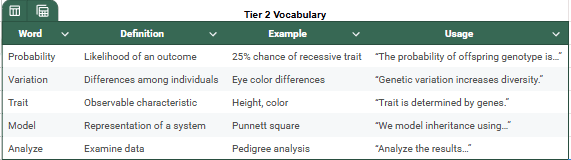
Create concise vocabulary support for these terms.

Terms: [list or attach]
Unit context: [insert or attach approved materials]
Grade: [insert]
Language-support goal: [insert or N/A]

Return only:
1. Student-friendly definition, example, non-example, and sentence frame for each term
2. Five mixed practice questions across all terms
3. Answer key
4. Terms with multiple meanings or facts I should verify

Keep disciplinary meaning accurate. Do not oversimplify or repeat my inputs.
Advanced
PLC and MTSS discussion
Prepare a support-focused team discussion from class-wide results without automating decisions.
Create a concise PLC or MTSS discussion guide.

Class results: [paste a class summary or attach a cleaned file that uses non-identifying student codes]
Learning targets: [paste or attach]
General support notes: [paste without confidential information or attach a cleaned summary; enter N/A if none]
Meeting purpose and time: [insert]

Return only:
1. Supported class-wide patterns
2. Up to three learning priorities
3. Discussion questions
4. Support options for team consideration
5. One short-term action and follow-up check
6. Missing information or limitations

Do not make placement, disability, discipline, intervention, or student-labeling decisions. Keep decisions with authorized educators. Do not repeat my inputs.
Teacher review checklist
Use this before sharing, teaching from, assigning, or grading with any AI-assisted draft.
Verify factual accuracy and standards alignment.
Remove student names, IDs, and unnecessary personal information.
Confirm you have permission to use any pasted or uploaded source material.
Check reading level, accessibility, and cultural or contextual assumptions.
Make sure the output fits the actual classroom, learners, and available time.
Revise unsupported claims and keep consequential decisions with educators.
Beyond the prompt
Use the free prompts now. See what we are building next.
We are developing a more streamlined workspace for source-aware uploads, saved materials, structured outputs, exports, and teacher review. Early supporters can use the current workspace while helping fund continued backend development.